
Show, don't pitch.
Guides, comparisons, and playbooks on interactive demos, product-led growth, and getting buyers to value before you ever get on a call.
How to Add a Zoom Effect to a Screen Recording
Zooming in on the part of the screen that matters makes a recording far easier to follow. How to do it with keyframes manually, with auto-zoom tools that follow your cursor, and how to get the effect from one recording without editing frame by frame.
How to Add Captions to a Screen Recording
Captions make a screen recording watchable on mute and accessible. Auto-caption tools, manual SRT files, burned-in versus soft captions, and why tooltips on an interactive demo do the job captions can't.
How to Blur a Face or Detail in a Video
How to blur faces, names, and on-screen data in a video: automatic face blur, manual tracked blur for moving subjects, static blur for fixed regions, and why redacting a screen recording is often more work than making an interactive demo.
How to Shrink a Screen Recording's File Size
Why screen recordings get so large, the four settings that control file size — resolution, frame rate, codec, and bitrate — how to re-export a smaller file on any platform, and the screenshot-based approach that skips the problem.
How to Record a Single Chrome Tab (Without the Whole-Screen Mess)
Three ways to record just one Chrome tab: the browser's own tab-capture picker, a screen recorder set to a single tab, and an extension. How each handles tab audio, and when a tab recording should become an interactive demo.
How to Record a Google Meet
How to record a Google Meet with the built-in feature, when it's available, the local-recording fallback, where recordings land, and why a short interactive demo often beats sending someone a 40-minute meeting video.
How to Record a Webinar (and Make It Watchable Afterward)
Recording the webinar is the easy part. How to capture it reliably with a backup, edit it into something people will actually watch on demand, and replace the demo segment with an interactive walkthrough.
How to Record Your Screen on a Mac (Free, Built-In)
Two built-in ways to record your Mac screen with no download: the Shift-Command-5 toolbar and QuickTime Player. How to capture system and microphone audio, where recordings save, quick trimming, and when a screen recording should be an interactive demo instead.
How to Screen Record on a Chromebook
ChromeOS has a built-in screen recorder — no install, no account. How to start it, capture audio, find your file, and turn a Chromebook recording into a shareable interactive demo.
How to Speed Up a Video (Screen Recordings Especially)
Speeding up a video is the quickest way to tighten a slow screen recording. How to do it on any platform, the speed range that stays watchable, when cuts beat speed, and when re-recording as a demo is faster than either.
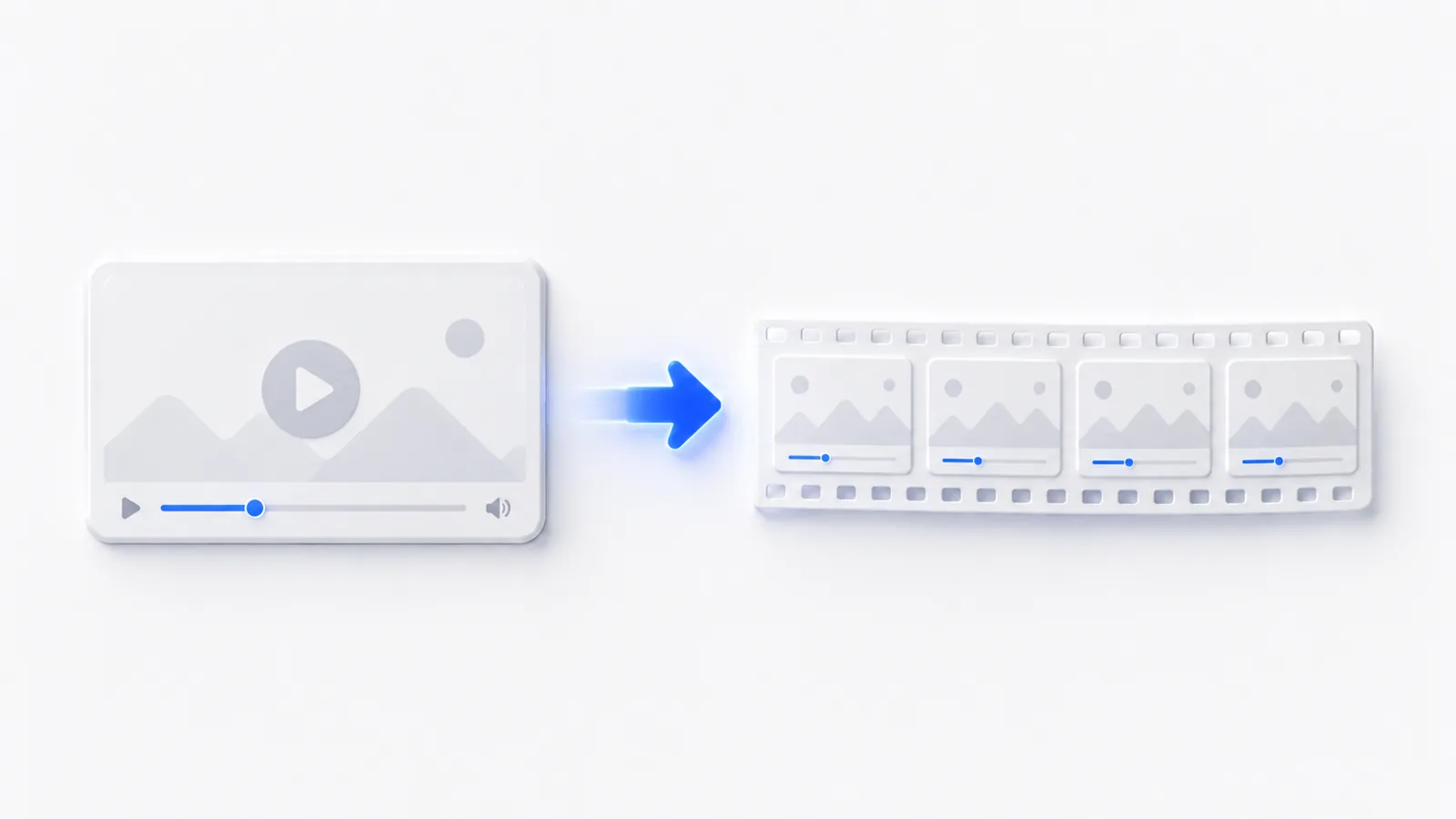
How to Convert a Video to a GIF
Convert a video to a GIF with EZGIF online, a copy-paste FFmpeg palette one-liner, or free Mac/Windows apps — plus the exact settings that keep file size down.
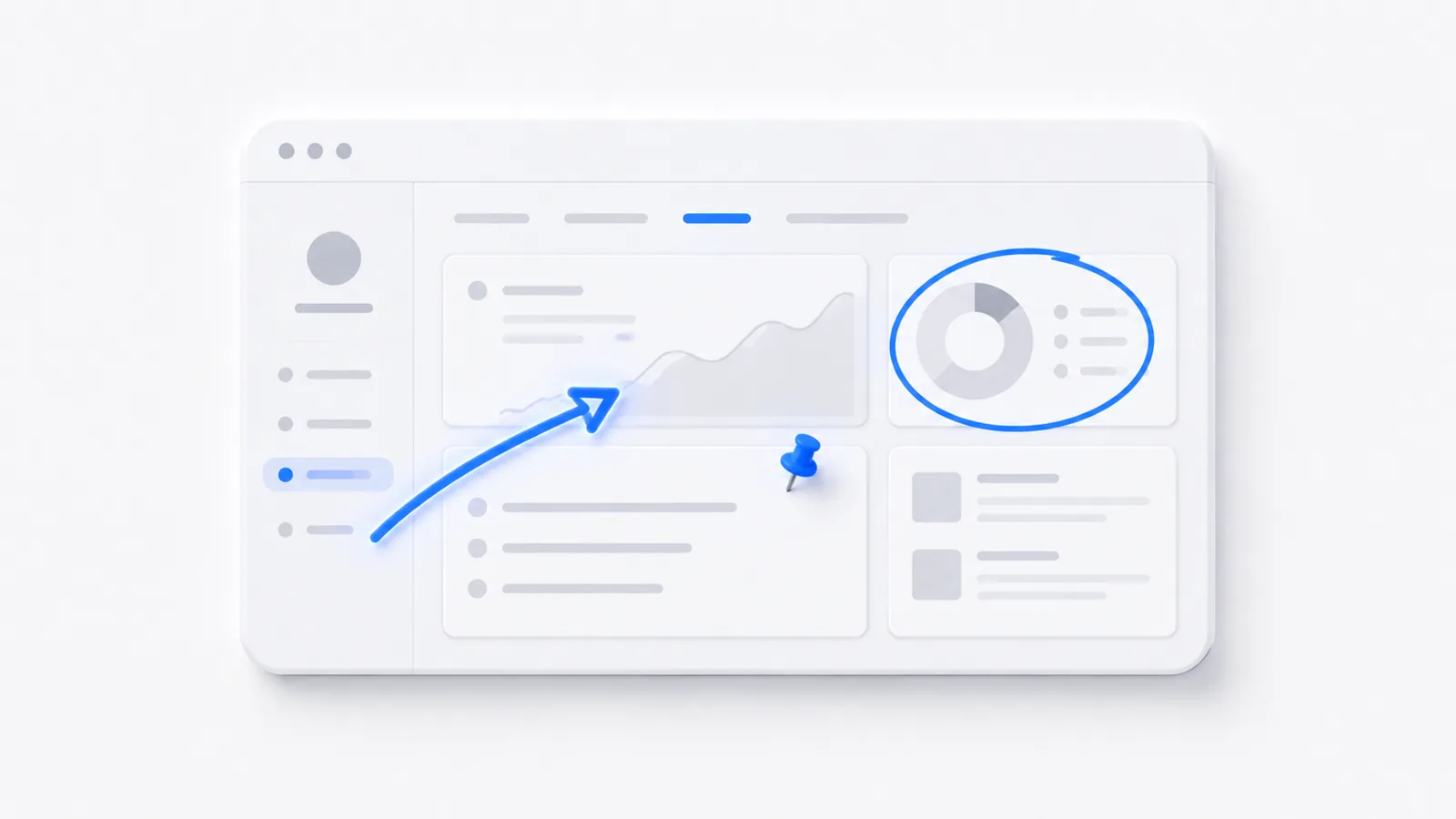
How to Annotate a Screenshot (Every Platform, Free)
How to annotate a screenshot with arrows, text, highlights, and blur — the built-in tools on Mac and Windows, free apps, and when a series of annotated screenshots should become one interactive demo instead.
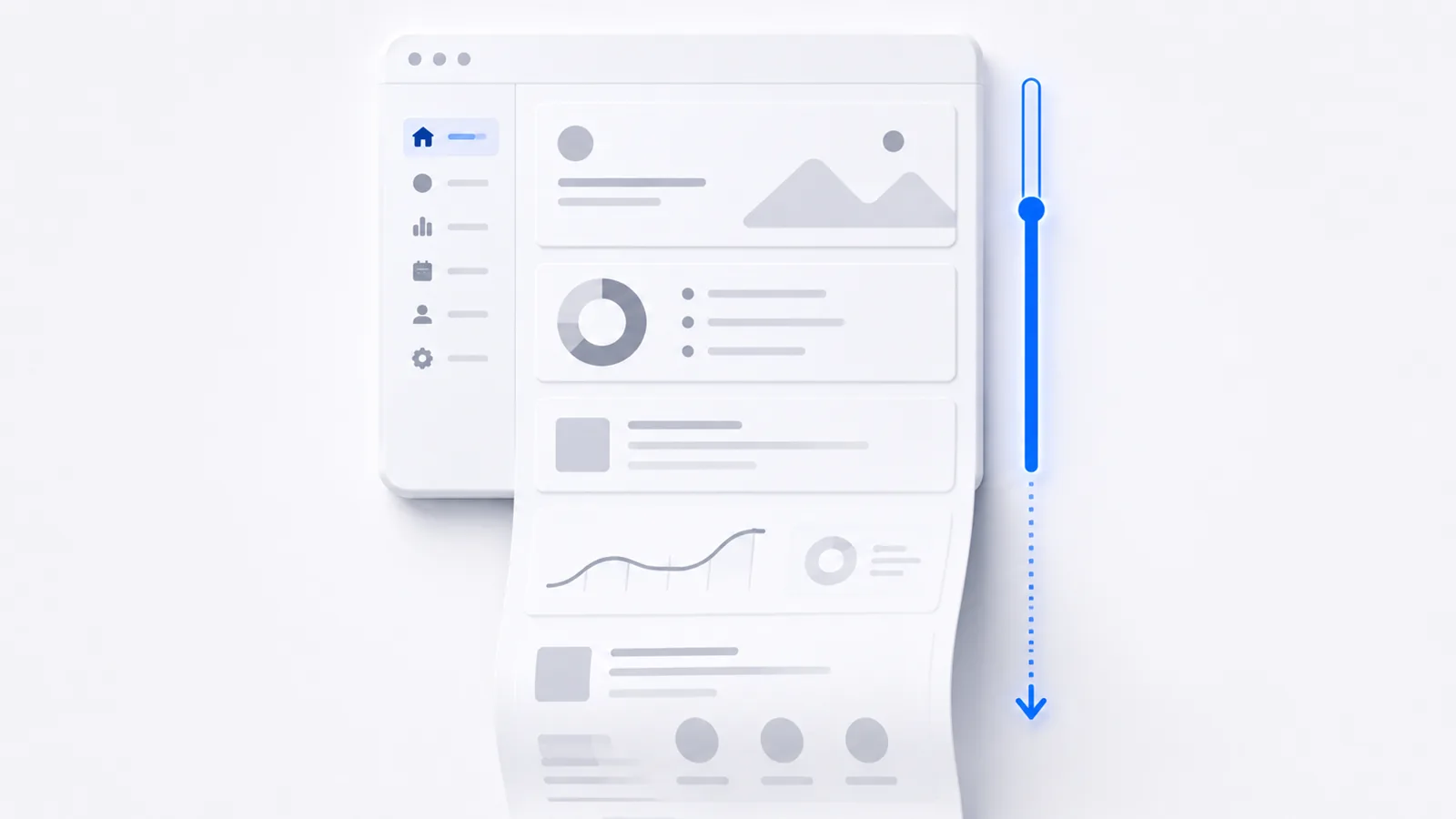
How to Take a Scrolling Screenshot
Capture an entire scrollable page or window on Windows, Mac, Chrome, iPhone, and Android — the exact tool and menu path for each, plus the gotchas.
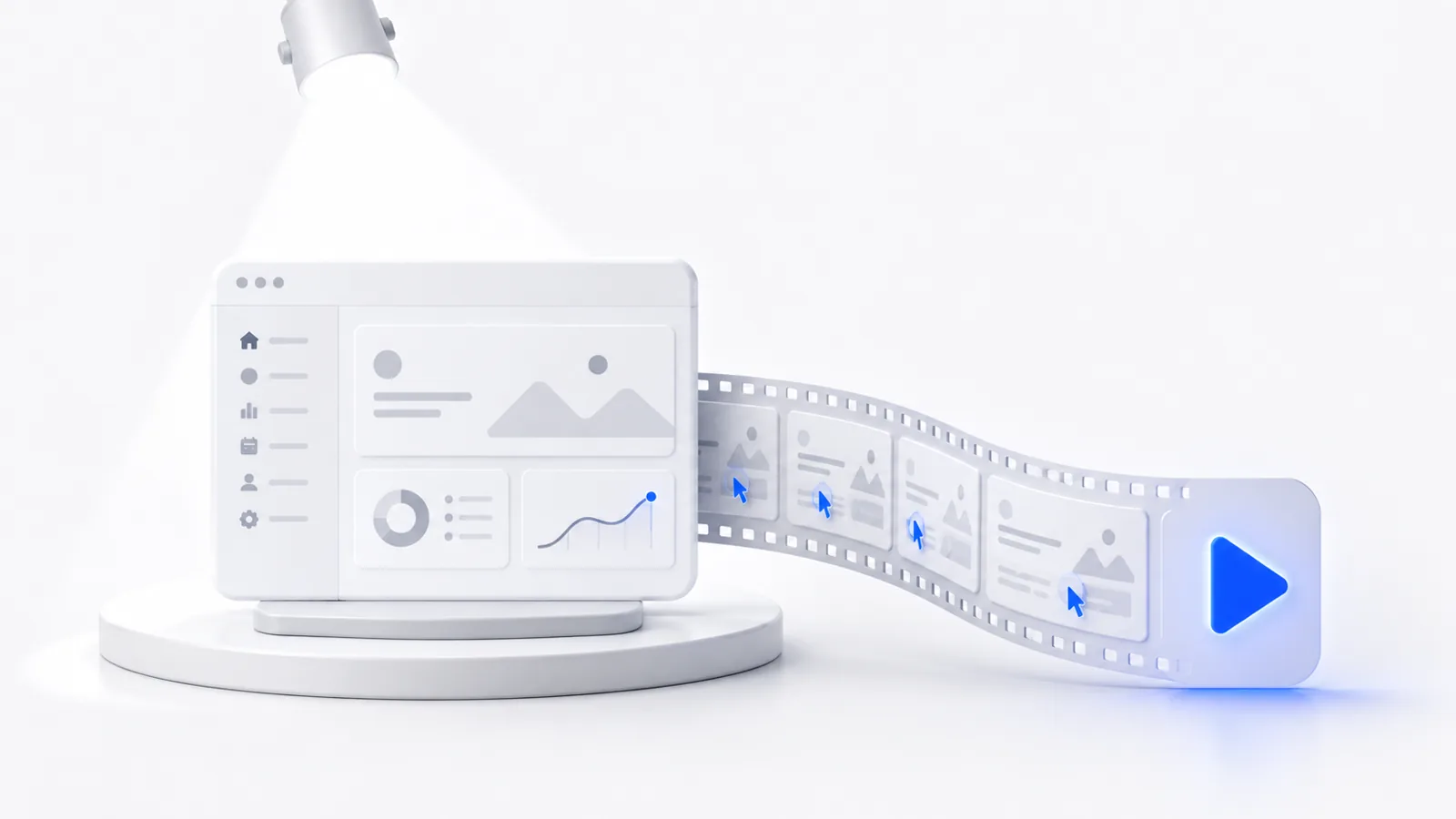
How to Make a Tutorial Video
The plan-record-edit method for software tutorial videos in 2026: which tool to pick by volume, shot-synced scripting, the 90-120 wpm pacing rule, and when an interactive demo beats a video.
How to Screen Record on Windows
Three free, built-in ways to record your Windows screen — Snipping Tool (Win+Shift+R), Xbox Game Bar (Win+Alt+R), and OBS — plus exact shortcuts and save paths.
How to Crop a Screenshot
Crop a screenshot fast on Windows 11 and Mac using built-in tools, plus keyboard shortcuts and aspect-ratio tips for clean, consistent documentation.
How to Compress a Video Without Wrecking Quality
Shrink a video file the right way: lower resolution and bitrate, pick the right codec, and use exact ffmpeg CRF or HandBrake RF settings to keep it sharp.
How to Make a GIF of Your Screen (Free, Every Platform)
The fastest free ways to record your screen as a GIF on Windows, Mac, and the web — plus how to keep the file small, and when an interactive demo beats a GIF for showing software.
How to Record Your Screen With Audio
Record your screen with sound on Windows and Mac, including the system-audio vs microphone distinction that leaves most tutorials silent.
How to Blur Part of a Screenshot
Free per-platform steps to hide sensitive info in a screenshot on Windows, Mac, iPhone and Android — plus why blur and pixelation are reversible and what to use instead.
How to Record a Loom-Style Video (and the Alternatives)
Record a screen video with a webcam bubble using Loom, Cap, Flat.social, or OBS. Exact steps, free-tier limits, and when a clickable demo works better.
How to Trim a Video Online (Free)
Trim a video free with no watermark using a browser tool or a built-in OS editor. The fastest, most private method, plus exact shortcuts for Windows, Mac, and iPhone.
The occasional, useful email.
New playbooks on demos and PLG. No spam, unsubscribe anytime.