
How to Convert a Video to a GIF
Convert a video to a GIF with EZGIF online, a copy-paste FFmpeg palette one-liner, or free Mac/Windows apps — plus the exact settings that keep file size down.
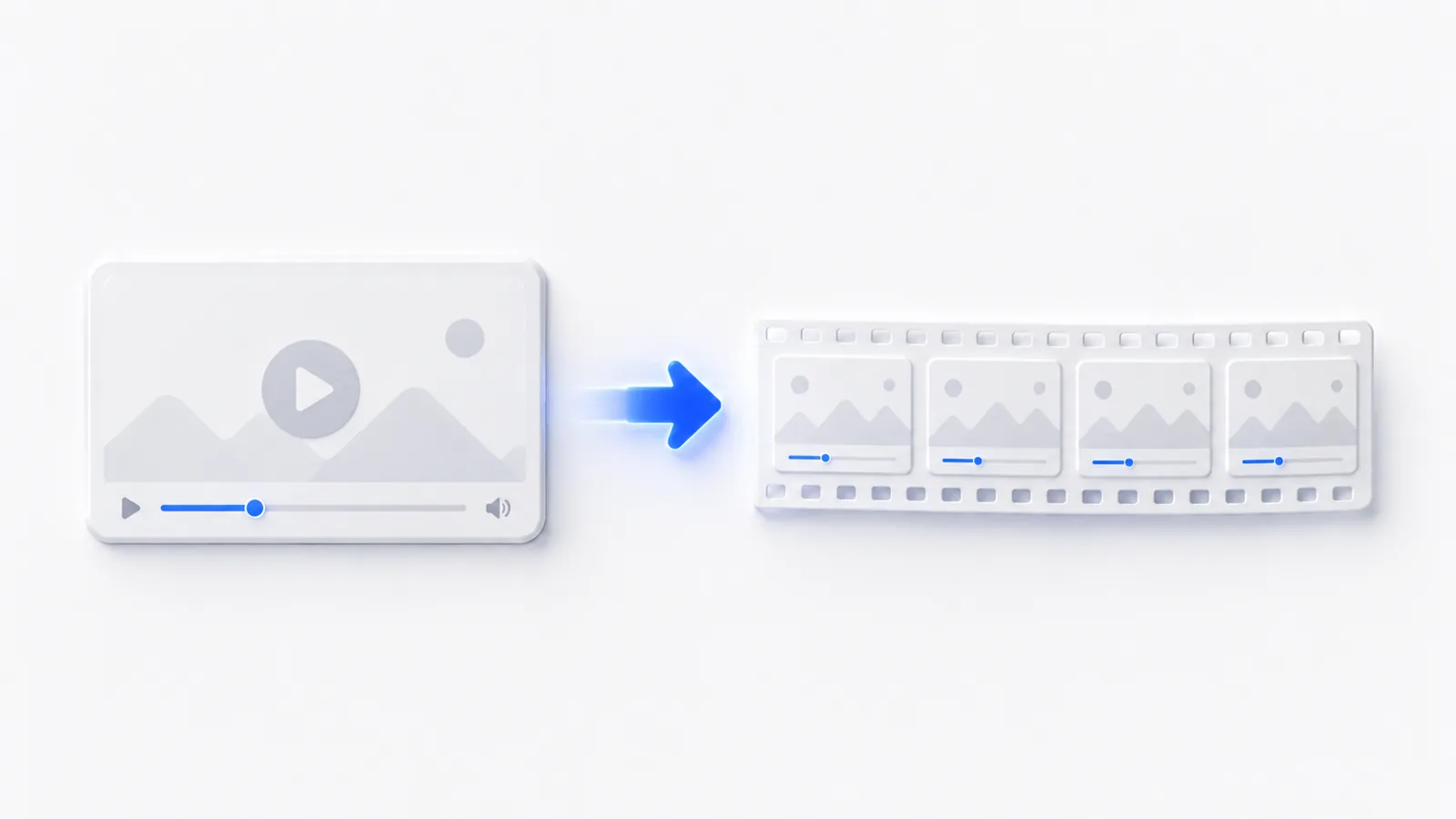
The fastest way to convert a video to a GIF is EZGIF (ezgif.com/video-to-gif) — upload, set a start and end time, drop the frame rate to 10–15fps, click Convert to GIF!, no signup or watermark. For the best quality, use the FFmpeg two-pass palette one-liner below. On the desktop, ScreenToGif is the free Windows pick and GIPHY Capture the free Mac one. Whatever tool you use, the file-size rule is the same: trim to 2–4 seconds and lower the frame rate first.
The fastest way: an online converter in under 2 minutes
If you just need a GIF and don't want to install anything, EZGIF is the path most people take. It's free, no signup, no watermark, no daily limit, and accepts MP4, WebM, MOV, FLV, WMV and more. The only real constraint is an upload cap of about 200MB.
If your source file is bigger than that, switch to FreeConvert (freeconvert.com), which allows uploads up to 1GB with unlimited conversions. A few other options exist but come with catches worth knowing before you start:
| Tool | Cost | Limit / catch |
|---|---|---|
| EZGIF | Free | ~200MB upload, no signup, no watermark |
| FreeConvert | Free | Up to 1GB upload, unlimited |
| CloudConvert | Free tier | Limited by daily conversion minutes; has an API |
| Adobe Express | Free | Caps input at 1 minute of video |
| Canva | Free | Requires a (free) account |
EZGIF step-by-step: trim, resize, frame rate, convert
- Go to ezgif.com and open the Video to GIF tab. Click Choose File, then Upload video!
- On the next screen, set Start time and End time in seconds. Pause the preview and click "Use current video position" to grab an exact timestamp instead of guessing.
- Set the Size dropdown. It defaults to original (max 600px wide on the free tier) — choose 480 or smaller for a lighter file.
- Set the Frame rate. The max is 33 FPS; drop it to 10–15 FPS to cut size significantly.
- Pick a conversion method, then click Convert to GIF!
- Below the result, click Optimize (or open ezgif.com/optimize). The "Remove every 2nd frame" option halves the frame count, and the lossy compression sliders trade a little quality for a big size cut.
The FFmpeg one-liner for best quality (Mac, Windows, Linux)
FFmpeg is free and CLI-only. The two-pass palette method is the gold standard: it builds a custom 256-color palette from your clip, then applies it, which looks dramatically better than a single-pass convert.
ffmpeg -i input.mp4 -filter_complex "fps=10,scale=480:-1:flags=lanczos,split[a][b];[a]palettegen[p];[b][p]paletteuse" output.gif
The flags are also your file-size dials:
fps=10drops the frame rate to 10fps. Source video is usually 24–30fps, so this is the single biggest size cut. 10–15fps looks fine for most GIFs.scale=480:-1resizes to 480px wide;-1auto-keeps the aspect ratio.flags=lanczosuses Lanczos resampling — a sharper downscale than the default bilinear.palettegen/paletteuseare the quality-makers. Always include them unless size truly doesn't matter.
Trim to a clip first — converting a whole video is the number one size mistake. -ss is the start time, -t is the duration in seconds:
ffmpeg -ss 00:00:05 -t 3 -i input.mp4 -filter_complex "fps=10,scale=320:-1:flags=lanczos,split[a][b];[a]palettegen[p];[b][p]paletteuse" output.gif
Putting -ss before -i makes FFmpeg seek fast (input seeking). Put it after -i and it decodes from the start, which is much slower. A trimmed 2–3s, 320–480px, 10fps clip typically lands around 2–3MB.
Install it once:
- Mac:
brew install ffmpeg - Windows:
winget install ffmpeg(orchoco install ffmpeg) - Linux:
sudo apt install ffmpeg
scale=480:-1 can produce an odd height. Use -2 instead of -1 to force an even number. For gradients, paletteuse=dither=bayer:bayer_scale=5 reduces banding; dither=none gives smaller, flatter files.Desktop apps: ScreenToGif, GIPHY Capture, Photoshop
If you're recording your screen straight to a GIF rather than converting an existing file:
- ScreenToGif (Windows only, free, open-source) — records screen, webcam, or a drawing board, then gives you a real frame-by-frame editor: delete frames, add text, set per-frame delay, then export. The go-to free Windows tool.
- GIPHY Capture (Mac only, free, Mac App Store) — record a screen region and export as GIF with caption, loop, and pixel-size/quality controls. Best "record screen → GIF" option on Mac.
- Adobe Photoshop (paid) — import video frames to layers, edit in the Timeline panel, then File → Export → Save for Web (Legacy) and choose GIF with a color count (128/256) and dither. The industry standard for hand-tuned marketing GIFs.
- LICEcap (Mac + Windows, free) and Gifox (Mac, paid) are lightweight screen-to-GIF recorders if you want something simpler.
If your goal is a screen capture in the first place, our guides on how to make a GIF of your screen and how to screen record on Windows cover the recording side end to end.
How to keep your GIF file size down (the 5 levers that matter)
In order of impact:
- Trim length first. GIF size scales with total frames; 2–4 seconds is ideal.
- Lower the frame rate to 10–15fps (the source is 24–30).
- Reduce dimensions — 320–480px wide is plenty for web, Slack, or social.
- Cap the color palette.
palettegenhandles this at 256; Photoshop lets you go to 128 or fewer. - Run an optimizer / lossy pass afterward (EZGIF Optimize, FreeConvert's GIF Compressor).
One inherent limit to accept: GIF is capped at 256 colors per frame, so video footage and gradients band badly. Dithering only partly hides it — that's the format, not your settings.
Should you even use a GIF? When WebP or MP4 wins
For a website embed, you usually shouldn't. An MP4 or WebP is far smaller than an animated GIF at the same quality — converting a GIF to WebP often cuts size 60%+. Reach for a real GIF only where true GIF support is required, like some email clients and chat apps. If you're compressing for the web, see how to compress a video for the MP4 route.
There's also a deeper limit. A GIF (or video) shows the same fixed path to everyone, can't be clicked through, and bands on detailed UI. For showing multi-step software — an onboarding flow, a feature walkthrough, a demo for your homepage — an interactive demo beats a GIF: viewers click through real screens at their own pace, and the file stays a lightweight link instead of a heavy animation.
That's the kind of thing createademo is built for: record your product with a Chrome extension, then add clickable hotspots, tooltips, and narration. It captures screenshots and video, not editable HTML, so it's a complement to GIFs and MP4s, not a replacement for them.
Quick comparison: which method should you pick?
| You want… | Use |
|---|---|
| Fastest, no install | EZGIF (FreeConvert if over 200MB) |
| Best quality, repeatable | FFmpeg palette one-liner |
| Record screen → GIF (Windows) | ScreenToGif |
| Record screen → GIF (Mac) | GIPHY Capture |
| Pixel-perfect marketing GIF | Photoshop |
| A web embed (smallest file) | WebP or MP4, not GIF |
Trim first, drop the frame rate, keep it under 480px wide, and run a quick optimize pass. Do those four things and almost any tool above will give you a clean GIF that doesn't balloon to 40MB.
Frequently asked questions
Why is my GIF file so huge?
Almost always because the clip is too long and the frame rate is too high. GIF size scales with the number of frames, so trim to 2–4 seconds and drop the frame rate to 10–15fps before anything else. A trimmed, 320–480px, 10fps clip usually lands around 2–3MB instead of tens of megabytes.
What FFmpeg command makes the best-quality GIF?
The two-pass palette method: ffmpeg -i input.mp4 -filter_complex "fps=10,scale=480:-1:flags=lanczos,split[a][b];[a]palettegen[p];[b][p]paletteuse" output.gif. It builds a custom 256-color palette from your clip and applies it, which looks far better than a naive single-pass convert.
Should I use a GIF or a WebP for my website?
For a website embed, use WebP or MP4 — both are 60–90% smaller than an animated GIF at the same quality. Real GIFs are only needed where true GIF support is required, like some email clients and chat apps.