
How to Crop a Screenshot
Crop a screenshot fast on Windows 11 and Mac using built-in tools, plus keyboard shortcuts and aspect-ratio tips for clean, consistent documentation.
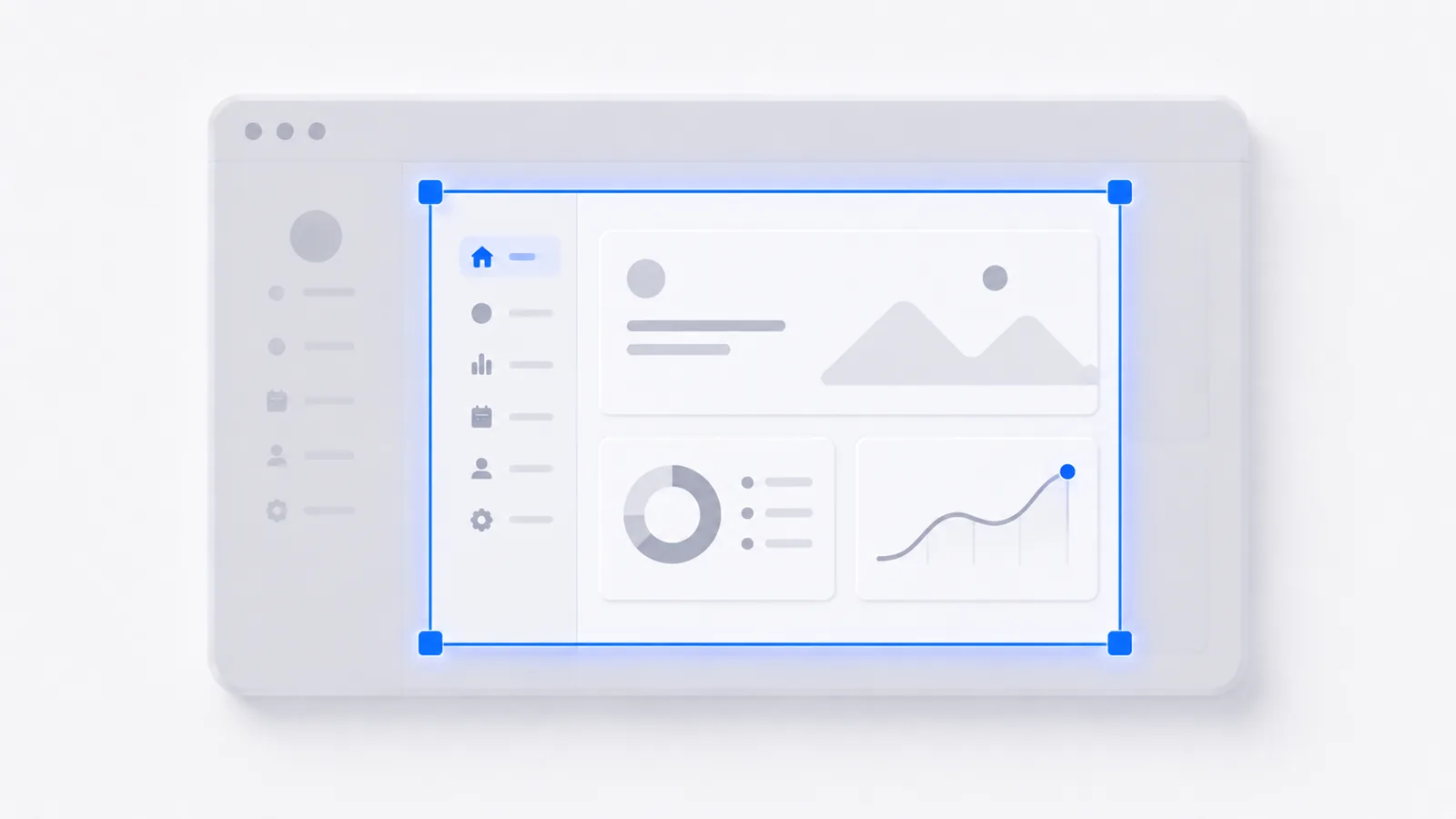
The fastest way to crop a screenshot is to crop at capture time: on Windows 11 press Win + Shift + S, pick Rectangular mode, and drag the exact area you want — that selection is your crop. On Mac press Cmd + Shift + 4 and drag the crosshair over the region. To crop an existing image, use Snipping Tool's Crop image button on Windows (then click the checkmark to apply) or Preview's Markup selection plus Cmd + K on Mac. Below are the exact steps, shortcuts, and the aspect-ratio rules that keep a doc set looking clean.
Keyboard shortcut cheat sheet (Windows vs Mac)
Scan this first. Most cropping never needs a menu.
| Task | Windows 11 | Mac |
|---|---|---|
| Capture a region (crop at capture) | Win + Shift + S | Cmd + Shift + 4 |
| Open the full capture toolbar | (Win + Shift + S overlay) | Cmd + Shift + 5 |
| Capture a clean window | Win + Shift + S, then Window mode | Cmd + Shift + 4, then Space |
| Crop an existing image | Snipping Tool > Crop image > checkmark | Preview Markup, then Cmd + K |
| Save the result | Ctrl + S | Cmd + S |
| Copy the result | Ctrl + C | Cmd + C |
| Lock proportions while selecting | (use Photos app) | Hold Shift while dragging |
Crop a screenshot on Windows 11 (Snipping Tool + Photos)
For a fresh capture, press Win + Shift + S, choose Rectangular mode (the first icon in the top bar), and drag over the area. The snip lands on your clipboard and a toast appears bottom-right. Dragging a tight rectangle is the crop — you may not need to edit at all.
To trim an existing screenshot, open it in Snipping Tool (click the toast, or launch from Start), then click the Crop image button in the editor toolbar — it's the 4th icon from the right and looks like two overlapping right angles. Drag the corner and edge handles inward, then click the checkmark / Apply to commit the crop. This step trips people up: dragging the handles alone does nothing until you confirm. Save with Ctrl + S or copy with Ctrl + C.
Snipping Tool's crop is freeform only — there is no aspect-ratio dropdown. If you need a locked ratio like 16:9, right-click the image > Open with > Photos, press Ctrl + R (or click the crop icon), then open the aspect-ratio dropdown (it defaults to "Free") and choose 16:9, 4:3, 1:1, or 3:2. Photos also has a Resize option that keeps the ratio locked.
One more surprise on current Windows 11 builds: pressing PrtScn now opens the Win + Shift + S overlay by default rather than copying the whole screen. If you want the old behavior back, toggle it under Settings > Accessibility > Keyboard > "Use the Print screen key to open Snipping Tool."
Crop a screenshot on Mac (region capture + Preview Markup)
Capturing a region is already a crop. Press Cmd + Shift + 4 and drag the crosshair over the area, or add Space to grab a single window cleanly. Cmd + Shift + 5 opens the capture toolbar with a resizable selection box if you prefer dragging handles before you shoot.
To crop an image you already have, open it in Preview, click the Markup toolbar button (the pen-tip icon), drag a rectangular selection, then choose Tools > Crop or just press Cmd + K. Save with Cmd + S. A common mistake is hitting Cmd + K before making a Markup selection — it does nothing useful until a rectangle exists. To constrain proportions while you drag, hold Shift, or use the dropdown next to the Selection tool to pick Square or a Fixed Aspect Ratio / Fixed Size.
Locking an aspect ratio for clean, consistent docs
The crop most people get wrong isn't the mechanics — it's the ratio. Mixing 16:9, 4:3, and random freeform crops across one document makes it look amateur and breaks CMS image grids.
Pick one ratio and apply it to every screenshot in a set:
- 16:9 is the safe default for full-window and desktop captures, slides, and embeds. It scales cleanly and matches most displays.
- 4:3 is the most flexible starting point — it crops down further to 1:1, 4:5, or 16:9 without losing much, so use it if you'll repurpose the shot.
- 1:1 (square) suits isolated UI elements: a single button, an icon, a small dialog.
Crop to the widest consistent width so your docs platform scales every image uniformly. And always crop on a lossless PNG copy — re-saving a JPEG after each crop recompresses it, and that artifacting is exactly where UI text gets fuzzy.
Common cropping mistakes to avoid
- Forgetting the Apply checkmark in Snipping Tool — the crop isn't in the saved file until you confirm it.
- Cropping in Preview without Markup — Cmd + K is inert until you've made a rectangular selection with the right tool.
- Re-saving JPEGs repeatedly — each pass degrades text legibility. Work from PNG.
- Cropping too tight — stripping the menu bar or breadcrumb so the reader can't tell where the element lives. Leave a little context.
- Leaving private info in frame — email addresses, notification banners, or a stray cursor. (If something sensitive sneaks in, see how to blur part of a screenshot.)
For polished captures, a crop is usually step one. From there you might annotate it to point readers at the right control — the screenshot annotator here does arrows, boxes, and text labels in the browser, so you don't have to open a separate editor.
When to use a dedicated tool instead
A cropped screenshot is perfect for a single state — one button, one dialog, one result. But a static image can't show flow. The moment you're documenting a multi-click process — settings change here, confirmation there, result on the next screen — a stack of cropped screenshots forces readers to mentally stitch the steps together.
For showing multi-step software, an interactive demo beats a wall of cropped images: readers click through the real UI at their own pace, with tooltips guiding each step. With createademo you capture your product with a Chrome extension, then add clickable hotspots, zoom, and blur right where you'd otherwise crop and annotate by hand.
Crop when you need to freeze one clean moment. Reach for an interactive demo when the value is in the sequence — and skip the per-image cropping busywork entirely.
Frequently asked questions
How do I crop a screenshot on Windows 11?
Open the screenshot in Snipping Tool, click the Crop image button in the editor toolbar, drag the corner handles inward, then click the checkmark to apply. Or skip cropping entirely by pressing Win + Shift + S and dragging a rectangular selection at capture time.
How do I crop a screenshot on a Mac?
Open the image in Preview, click the Markup button (pen-tip icon), drag a rectangular selection, then press Cmd + K or choose Tools > Crop. Save with Cmd + S. Capturing a region with Cmd + Shift + 4 is itself a crop.
Can Snipping Tool crop to a fixed aspect ratio like 16:9?
No. Snipping Tool's crop is freeform only. For a locked ratio on Windows, right-click the image, open it in the Photos app, click Crop, and choose a ratio from the aspect-ratio dropdown.