
How to Blur Part of a Screenshot
Free per-platform steps to hide sensitive info in a screenshot on Windows, Mac, iPhone and Android — plus why blur and pixelation are reversible and what to use instead.
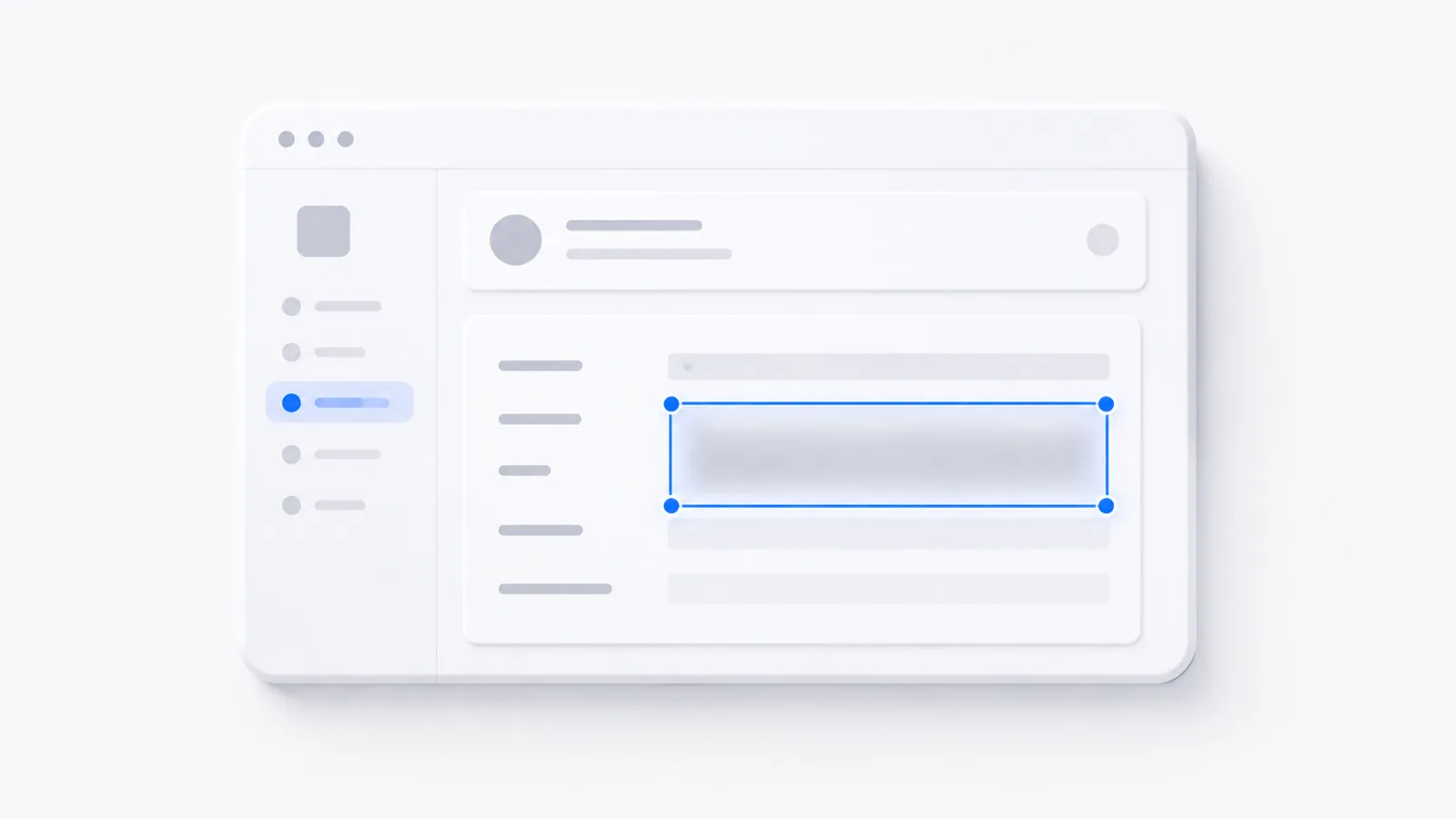
If you are hiding sensitive data, do not blur it — cover it. Blur and pixelation can be reversed, so the safe method is a solid, opaque box over the area, then flatten and export a new file. On Windows 11 use Snipping Tool's Quick Redact or Redact text (Ctrl+R). On Mac use Preview's Markup with a solid-black filled rectangle (or Tools → Redact). On iPhone/Android, use a fully opaque pen or shape, never a partial-opacity highlighter. Here is how to do each correctly so it can't be undone.
The fast answer: cover it, don't blur it
For privacy, the tool matters less than the technique. A blur or mosaic is a reversible transformation — it averages pixels rather than discarding them — so the underlying characters or face often survive in mathematically recoverable form. A solid fill, by contrast, stores none of the original pixels. There is nothing left to peel back.
So the rule is simple: opaque solid box, then flatten and save as a new PNG or JPG. Everything below is just the per-platform version of that rule, using free built-in tools where possible.
"It looks unreadable to me" is not a safety test. Human-unreadable does not mean machine-unrecoverable. If the box isn't a single solid color, assume the data is still there.
Hide sensitive info on a Windows 11 screenshot (Snipping Tool, free)
Snipping Tool has built-in redaction, and it does the safe thing by default — a solid bar, not a blur.
- Open Snipping Tool, take your capture (Win+Shift+S), and the result opens in the editor.
- Click Text Actions (or press Ctrl+T). The tool runs OCR and makes the text in the image selectable.
- For automatic cleanup, click Quick Redact — it detects and blacks out PII in one click. Use the small down-arrow next to it to choose categories like Email addresses and Phone numbers.
- For manual control, highlight the specific text, then right-click → Redact text (Ctrl+R). This drops a solid black bar over it.
- Save as PNG or JPG. The original pixels under the bar are discarded, so it cannot be reversed.
For non-text content — a face, a chart, a logo — Snipping Tool has no native blur. Use the Shapes tool to draw a filled black rectangle over the area. Make sure the fill is solid, not an outline.
Hide sensitive info on a Mac screenshot (Preview, free)
Preview's Markup tools handle redaction without any download.
- Open the screenshot in Preview, then open Markup with the pencil-in-circle icon or Cmd+Shift+A.
- Recent macOS adds a dedicated Tools menu → Redact — select the area to black it out.
- If you don't see Redact, use Markup → Shapes → rectangle, then set the Fill swatch in the Markup bar to solid black. Drag it over the sensitive area.
- Export a new file: File → Export as PNG so the shape is flattened into the image.
Preview has no true blur filter, which is fine — a solid opaque shape is exactly what you want for anything sensitive.
Blur or redact on iPhone and Android (built-in, free)
Phones are where people get burned, because the built-in markup tools tempt you into a half-measure.
iPhone/iPad: Photos → open the screenshot → Edit → Markup (marker-tip icon, top-right). There is no dedicated blur. Pick the pen at full opacity in solid black and fully cover the area, or drag a solid shape over it. Do not scribble with a highlighter — the highlighter runs at partial opacity, so the data shows straight through even though it looks covered.
Android: On a Samsung Galaxy, the Gallery editor has a mosaic/pixelate brush — avoid it for anything sensitive, because mosaic is reversible. On Pixel, Markup has no native blur; use a solid pen or shape. For a better free option, "Screenshot Editor – Markup" (offline, with AI text detection) lets you tap text blocks and choose solid redact — pick that, not blur or pixelate.
After covering, crop tightly if you can. Cropping the sensitive region out entirely removes the pixels and is the strongest option of all.
Why pixelation and blur can be un-done
This is the part the generic step-by-step guides skip, and it's the whole point.
- Depix (2020, open-source on GitHub) recovers pixelated monospaced text. It brute-forces candidate strings rendered in the same font, pixelates each one the same way, and matches the output to your image.
- Unredacter (Bishop Fox) reconstructs text from pixelated screenshots, defeating naive redaction that many people trust.
- Video is worse: object and camera motion across frames leaks extra detail per mosaic block, so a pixelated region in a clip is easier to reconstruct than in a still.
- AI/GAN upscalers (PULSE-style) can hallucinate a plausible face back out of a blurred one.
None of these need the original — they exploit the fact that blur and pixelation are math you can run backwards.
The only redaction that's actually safe
Use a single-color opaque box (solid black or white) or destructively crop the data out. Then:
- Flatten before you save. A cover saved into a layered format (PSD, or a PDF with annotation layers) is a removable layer — anyone can delete it. Always export a fresh PNG/JPG.
- Strip metadata. EXIF can leak location and device data even after the visible info is hidden.
- Check the edges. Sensitive data peeking from a dropdown, tooltip, browser autofill, or a reflection outside your box defeats the whole effort.
- Don't confuse crop with cover. Cropping is safe because the pixels are gone. Covering is only safe if it's opaque and flattened.
A quick gut check: if you can select the text under your "redaction," or the box has any transparency, it isn't redacted yet.
Paid tools worth it for frequent redacting
If you redact screenshots all day, a dedicated tool saves time:
| Tool | Platform | Price | Redaction feature |
|---|---|---|---|
| CleanShot X | Mac | ~$29 one-time | Real blur/pixelate, redact, hide desktop clutter |
| Xnapper | Mac | Paid | Blur/pixelate + redact |
| Bandicam | Windows | Paid | Dedicated blur/pixelate-area tool |
| Jumpshare | Win/Mac | Free tier | Annotate mode: B to Blur, P to Pixelate |
Even with these, the privacy rule holds: for passwords and account numbers, reach for the solid redact, not the blur button.
When one screenshot isn't enough
Redacting a single screenshot is a one-off. When you're showing how multi-step software actually works — and you need to hide a customer's name on screen 1 and an API key on screen 4 — a stack of separately-edited images falls apart fast. For that, an interactive demo beats a folder of screenshots: you capture the real flow once, then redact per step in one editor.
That's the workflow behind making a clickable product demo: record the product, then add hotspots, zoom, and blur where it counts. If you're staying in still images, the same opaque-box discipline applies to annotating a screenshot and to cropping a screenshot — and remember that cropping the data out is the most reversible-proof move you can make.
Whatever tool you pick, the takeaway is the same: don't blur sensitive data. Cover it with a solid box, flatten it, strip the metadata, and check the edges.
Frequently asked questions
Can blurred or pixelated text be unblurred?
Often yes. Blur and pixelation average pixels instead of deleting them, so the original data is frequently recoverable. Tools like Depix and Bishop Fox's Unredacter reconstruct pixelated monospaced text, and AI upscalers can hallucinate faces back from blurred images. For passwords, card numbers, or emails, cover the area with a solid opaque box instead of blurring.
What is the safest way to redact a screenshot?
Draw a solid, single-color (black or white) opaque box over the sensitive area, then flatten and export a brand-new PNG or JPG. A solid fill stores none of the original pixels, so there is nothing to reverse. Cropping the data out entirely is equally safe because the pixels are gone.
Does the Windows Snipping Tool have a blur tool?
No. Snipping Tool offers Quick Redact and manual Redact text (Ctrl+R), which apply a solid black bar to OCR-detected text rather than a blur. For graphics or faces, draw a filled black rectangle with the Shapes tool. The redaction is baked in permanently once you save.