
How to Annotate a Screenshot (Every Platform, Free)
How to annotate a screenshot with arrows, text, highlights, and blur — the built-in tools on Mac and Windows, free apps, and when a series of annotated screenshots should become one interactive demo instead.
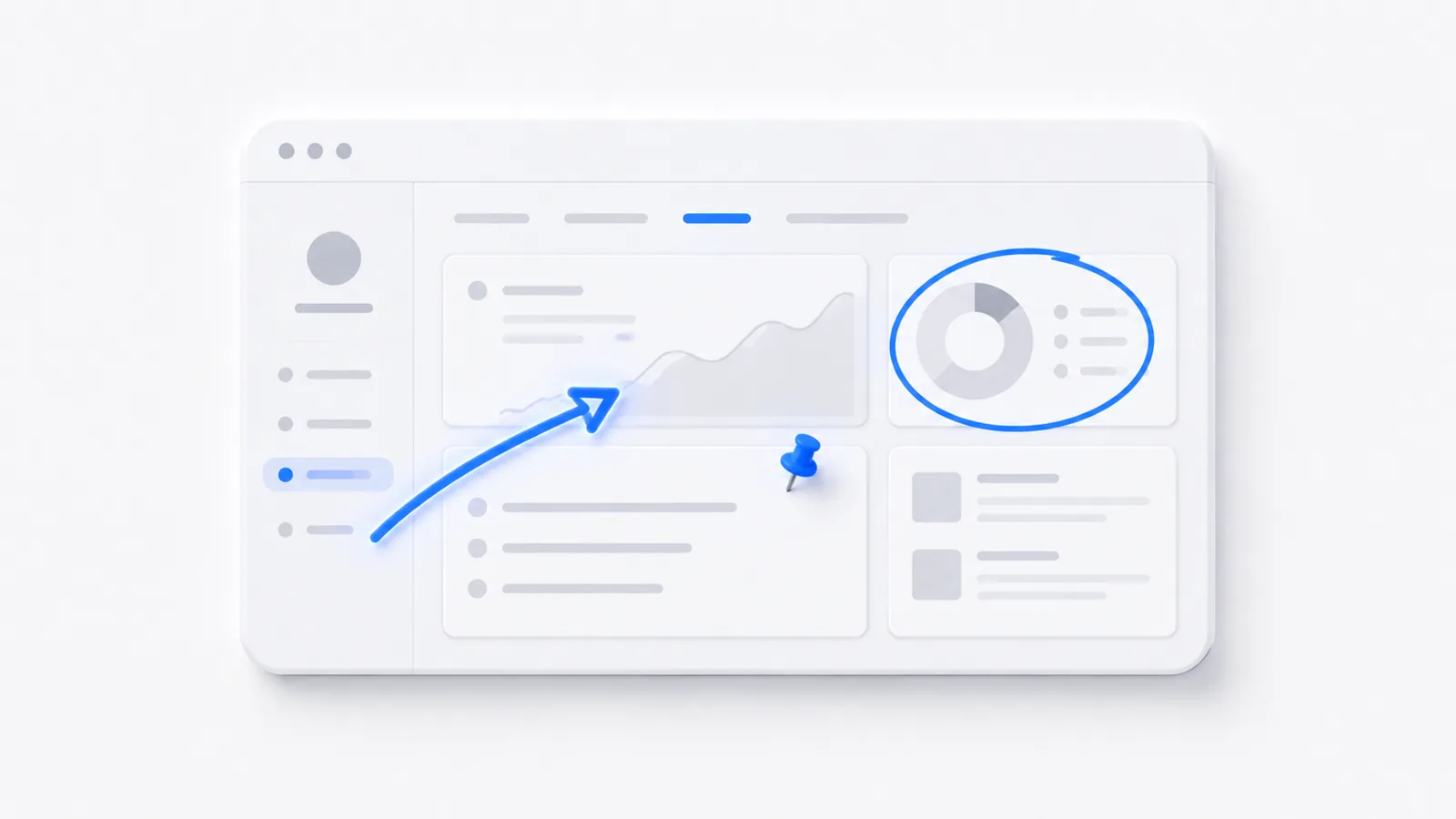
To annotate a screenshot for free: on Mac, click the screenshot thumbnail to open Markup (or open it in Preview) and use the arrow, text, shape, and highlight tools; on Windows, use the built-in Snipping Tool's pen, highlighter, and shapes. For more options on any platform, free apps like Greenshot, or the browser-based screenshot annotator on this site, do the same. The skill isn't the tool — it's restraint: one clear emphasis per image. Here are the tools, the rules, and when to stop annotating and build a demo instead.
Mac: Markup and Preview
After any screenshot (Cmd + Shift + 4), a thumbnail appears in the corner — click it to open Markup, with arrows, shapes, text, a highlighter, and a signature tool. For a saved image, open it in Preview and click the marker icon to reveal the same toolbar. Both are free, built in, and enough for 90% of annotation jobs.
Windows: Snipping Tool
The modern Snipping Tool (Win + Shift + S) captures and then opens an editor with pen, highlighter, ruler, and shape tools. It's improved a lot — for basic arrows, highlights, and text it's all most people need. For heavier work, Greenshot (free, open source) adds numbered step markers and an obfuscate/blur tool.
Any platform: free apps and browser tools
- Greenshot (Windows) — fast, with auto-incrementing step numbers, great for guides.
- Browser-based editors — no install; paste or upload a screenshot and annotate. Handy on locked-down machines.
- For redacting sensitive data specifically, see how to blur part of a screenshot.
The rules that make annotation readable
Tools are easy; taste is the hard part. Four rules:
- One emphasis per screenshot. One arrow, one box, one point. Five marks read as noise.
- Point inward. Arrows should aim toward the subject, not away from it.
- Don't cover the thing you're explaining. Place text and labels in empty space.
- Blur before you share. Cover names, emails, and numbers that aren't yours to publish.
If you need numbers (1, 2, 3) on a single screenshot to explain order, that's usually the signal you have a multi-step process — and a sequence of stills is about to get confusing. Read on.
When annotated screenshots should be a demo
A single annotated screenshot is a great unit of communication — drop it in a Slack thread, a bug report, or a doc and the point lands instantly. The trouble starts when one screenshot becomes five, then ten, each with its own arrows, stitched into a "follow these steps" sequence.
At that point the reader is doing extra work: mapping your numbered stills onto their own live screen, guessing what changed between shots. An interactive demo removes that gap — instead of annotating each step, the viewer clicks through the real flow with a tooltip on each step explaining why it matters:
So: annotate a single screenshot for a single point; build an interactive demo the moment you're sequencing several to teach a process. If you're heading that way, see how to create a step-by-step guide — and to tidy the raw images first, how to crop a screenshot.
Frequently asked questions
How do I annotate a screenshot for free?
On Mac, take a screenshot and click its thumbnail to open Markup, or open the image in Preview — both add arrows, text, shapes, and highlights for free. On Windows, the built-in Snipping Tool lets you draw, highlight, and add shapes. For more control, free apps like Greenshot (Windows) or the browser-based tools work on any platform. None of these require a paid account.
What's the best way to annotate a screenshot?
Use the fewest marks that make the point: one arrow to the thing that matters, a short text label, and a blur over anything sensitive. The most common mistake is over-annotating — five arrows and three boxes turn a clear screenshot into a puzzle. One emphasis per screenshot reads instantly.
How do I add arrows and text to a screenshot?
Open the screenshot in your platform's markup tool — Markup or Preview on Mac, Snipping Tool on Windows — select the arrow or text tool, and drag or click to place it. Keep arrows pointing inward toward the subject, and place text where it won't cover the thing you're explaining.
Should I annotate screenshots or make an interactive demo?
For a single step or a quick point in a chat or doc, an annotated screenshot is perfect. But if you find yourself stitching five or more annotated screenshots together to explain a process, an interactive demo is clearer — the viewer clicks through the real flow with guidance instead of mapping a sequence of stills onto their own screen.