
How to Create Training Videos for Software (Without Re-Recording Them Every Quarter)
A practical method for making software training videos — plan the curriculum, record clear lessons, and keep them from going stale. Plus why interactive walkthroughs often train users better than video.
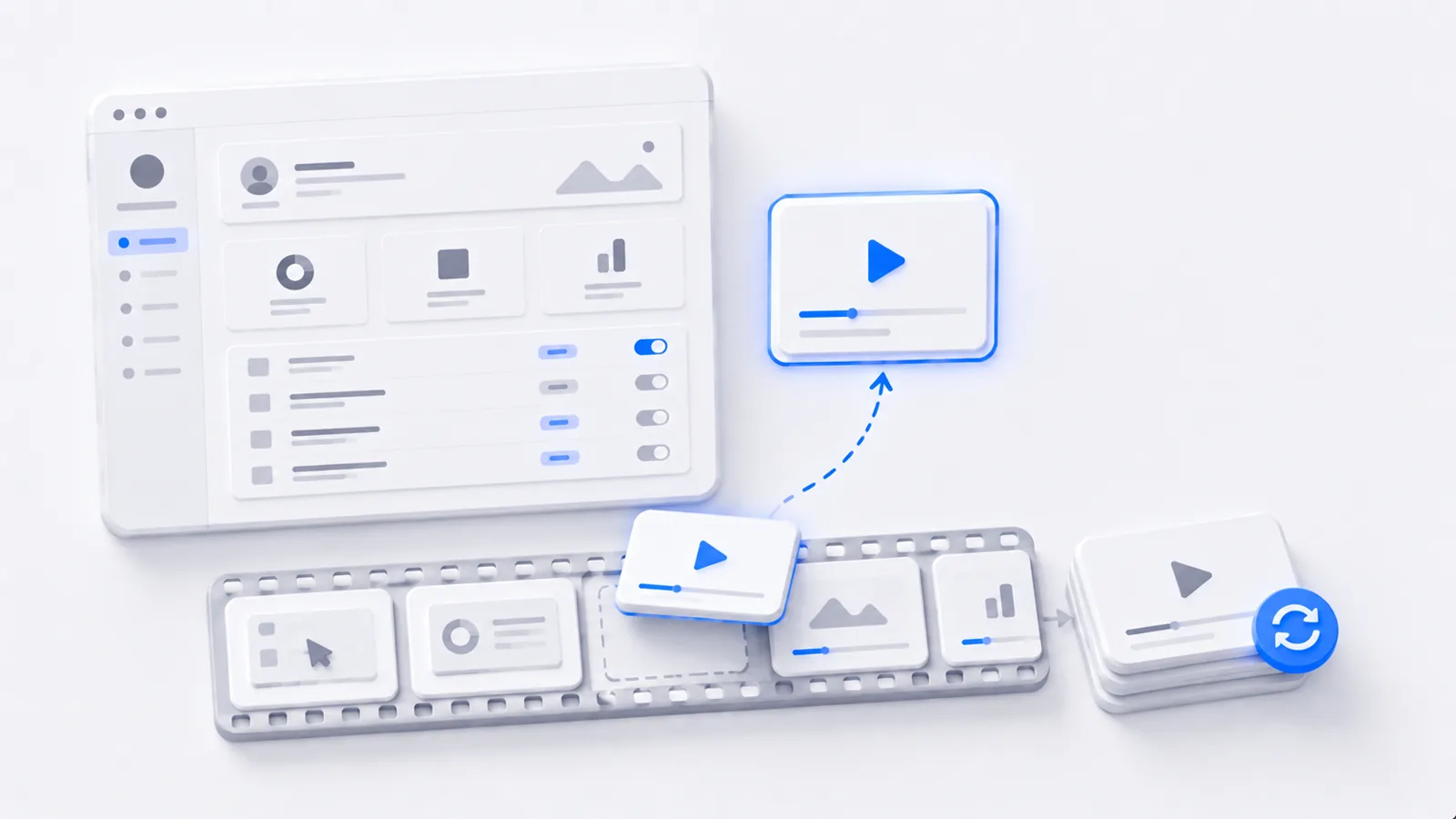
To create training videos for software: split the product into short, task-based lessons (one outcome each), script a brief talk track, record a clean narrated screen capture, and arrange the lessons into a sequence a new user can follow. Keep each one to three to five minutes. The real challenge isn't recording — it's maintenance, because every UI change can make a video wrong. Here's the method, and where an interactive walkthrough trains better than a clip.
Plan the curriculum before you record one frame
Resist the urge to record one giant "everything" video. Instead, list the jobs a user needs to do in the software, in the order they'll hit them: set up an account, create their first thing, share it, analyze results. Each job becomes one short lesson with one clear outcome.
This task-based structure does two things: learners can jump straight to what they need, and when one feature changes you only re-record the one affected lesson — not a 40-minute monolith.
Script each lesson tight
A training video that rambles teaches poorly. For each lesson, write the spine: the task, the steps, and the why behind the steps. Narrate the reasoning, not the mechanics — "we tag it here so it shows up in reports later" teaches; "now I click the dropdown" doesn't. (The same script-first discipline drives a good tutorial video.)
Record clean, consistent lessons
Consistency is what makes a library feel professional:
- Use the same test account and sample data across every lesson.
- Record at a steady 1080p, 100% browser zoom, notifications off.
- Use a real microphone — clear audio matters more than video resolution.
- Move slowly and pause before key clicks so learners can follow.
Avoid filming anything that changes often — billing screens, pricing, beta features. Those are the frames that date your library fastest and force re-records.
The maintenance problem nobody warns you about
Here's the trap with video training: the day you finish recording is the day it starts going stale. A renamed button, a redesigned dashboard, a moved menu — any of these makes a polished video subtly wrong, and wrong training is worse than none because it erodes trust. Fixing it means re-recording, re-editing, re-uploading.
This is why mature teams move their multi-step, hands-on training off video and onto interactive walkthroughs.
Why interactive walkthroughs train better
People learn software by doing it, not watching someone else do it. An interactive demo puts the learner in the driver's seat — they perform the real action with a tooltip guiding each step — so the learning sticks, and the act of doing it is itself the proof they've learned:
It also sidesteps the maintenance trap: when the UI changes, you update the affected step, not the whole video. Videos still earn their place for conceptual overviews and announcements — but for "here's how to actually do this," hands-on wins.
The strongest software training programs use both: short videos for the why and the big picture, interactive walkthroughs for the how. To build the interactive side, start with how to create a step-by-step guide, and to capture the source footage cleanly, see how to record a software demo. For the broader practice of writing it all down, see how to document a process.
Frequently asked questions
How do I make training videos for software?
Break the software into task-based lessons (one outcome each), script a short talk track per lesson, record a clean screen capture with clear narration, and keep each video short — three to five minutes. Organize them into a logical sequence so a new user can follow start to finish. The hardest part isn't recording; it's keeping the videos accurate as the software changes.
How long should a software training video be?
Keep each lesson to one task and three to five minutes. Long, comprehensive videos feel efficient to make but are painful to watch and impossible to update — when one feature changes you have to re-record the whole thing. A library of short, single-task lessons is easier to consume and far cheaper to maintain.
Why do software training videos go out of date so fast?
Because they bake a specific UI into a fixed recording. The moment a button moves, a menu is renamed, or a screen is redesigned, the video shows something that no longer matches the product — and fixing it means re-recording. This is the single biggest hidden cost of video-based training, and it's why many teams move multi-step training to interactive demos.
Are interactive demos better than videos for software training?
For hands-on, multi-step training, usually yes. People learn software by doing, not watching — an interactive walkthrough has the learner perform the real action with guidance, which sticks better and doubles as the activation event. Videos still win for conceptual overviews, announcements, and anything where motion or voice carries the message.