
How to Record a Software Demo (That People Actually Finish)
A practical, step-by-step guide to recording a software demo — how to plan the flow, capture a clean recording, and turn it into an interactive walkthrough buyers actually click through instead of skipping.
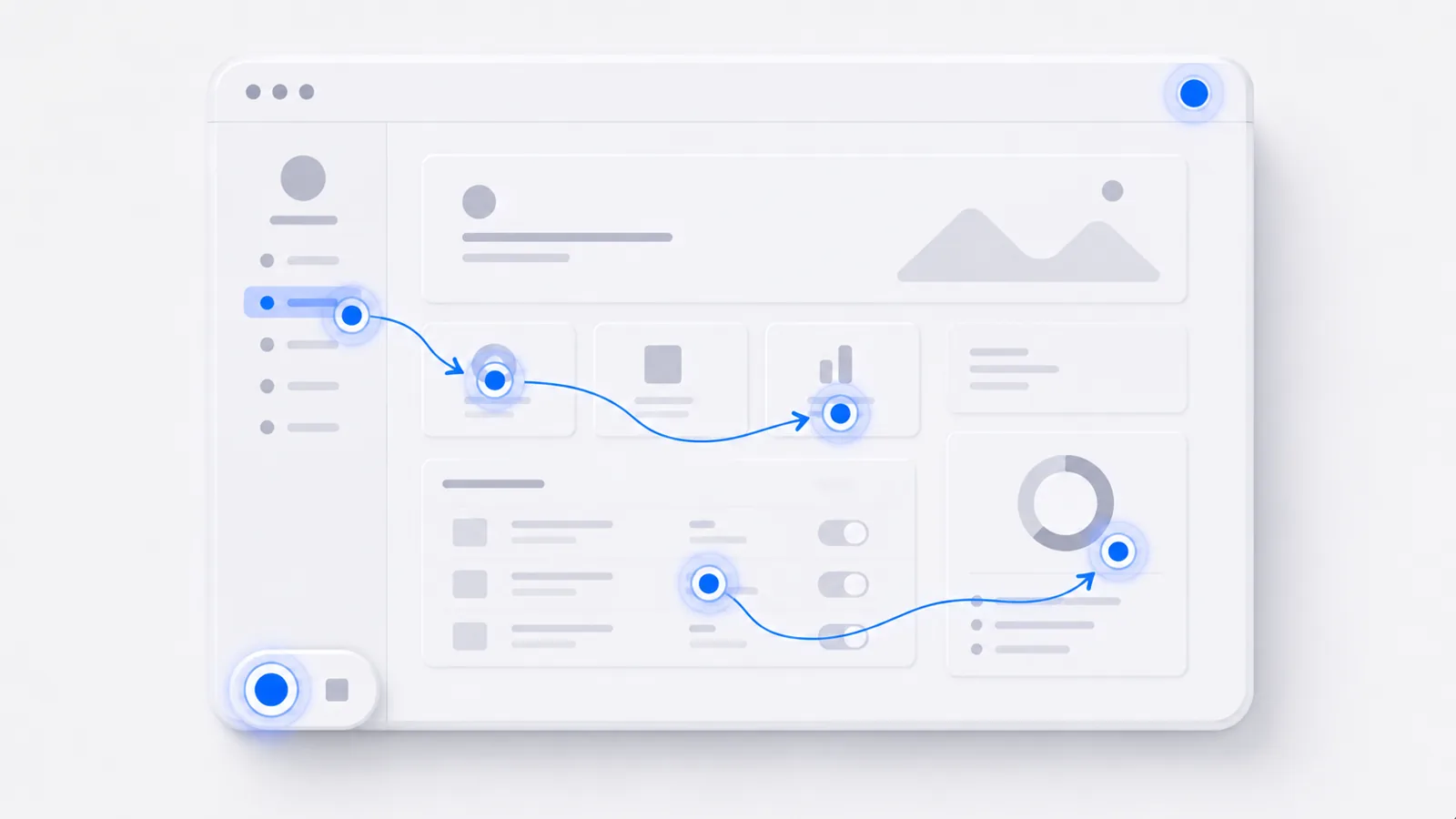
To record a software demo: plan the 5–12 clicks that show one clear outcome, open a clean test account, capture the flow with a screen-and-screenshot recorder (a Chrome extension is the fastest path), then edit it into an interactive walkthrough — add hotspots, zoom on the important bits, blur anything sensitive, and publish a shareable link. The recording is the easy part; the editing is what turns a screen capture into a demo people finish. Here's the full process.
Before you record: plan the flow
The single biggest mistake is hitting record before deciding what the demo is for. A demo is not a feature tour — it's one story with one payoff. Write down:
- The outcome the viewer should see ("find which channel is losing revenue," not "explore the analytics dashboard").
- The 5–12 clicks that get there, in order. If it takes more than ~12, you're showing too much.
- The "aha" step — the moment the value is obvious — and make sure it lands early.
Step 1: Clean your environment
Recordings die on details. Before you capture: close noisy tabs and notifications, use a test account with realistic-but-fake data, set your browser to a standard zoom (100%), and clear personal bookmarks from the bar. Thirty seconds here saves a re-record later.
Step 2: Capture the flow
You have two capture methods, and the best tools let you use both:
- Screenshot capture records each click as a still. Viewers click through at their own pace, the demo loads instantly, and it won't break when your UI shifts.
- Video capture records motion — right for drag-and-drop, animations, or anything where the movement is the point.
With createademo you install the Chrome extension, pick a mode, and recording starts immediately — each click is captured as you go, no separate editing app. (For a deeper look at recorder options, see the best screen recorders for product demos.)
Step 3: Edit — the part that makes it a demo
A raw screen recording is not a demo. The editing is where it becomes one:
- Hotspots — clickable markers that guide the viewer to the next action so they never get lost.
- Tooltips — short captions explaining why this step matters, not just what to click.
- Zoom — push in on the one number or button that carries the step. Viewers miss things at full-screen scale.
- Blur — cover any sensitive data before it goes out.
- Narration — optional per-step audio for a more guided, sales-style feel.
This is also where you cut. If a step doesn't move the story toward the outcome, delete it.
Step 4: Publish and share
Export a shareable link, or embed the demo directly on a landing page, in an email, or in your docs. (Here's how to embed a demo on a website.) Interactive demos also capture analytics — where viewers drop off — so you can tighten the flow over time.
Static recording vs. interactive demo
Here's the difference a viewer feels. A recorded video plays at you; an interactive demo lets you drive. Below is a demo built with the process above — click through it and notice you're setting the pace, not watching a clip:
That control is why interactive demos get finished far more often than recorded videos, and why they survive AI-summarized search results: a summary can describe a demo, but it can't let you click one.
Common mistakes to avoid
- Showing everything. A demo with 30 steps is a manual. Cut to the one outcome.
- Burying the aha. If the payoff is at step 18, most viewers never see it.
- Narrating what's obvious. "Now I'll click the button" adds nothing. Explain why, or stay quiet.
- Forgetting mobile. If buyers will open it on a phone, check it there before publishing.
Once you've recorded one, the next is faster — and the editing instincts compound. If you want the bigger picture, start with our guide to creating an interactive product demo.
Frequently asked questions
What's the easiest way to record a software demo?
Use a browser-based capture tool that records your screen as you click through the product, then layers interactivity on top. With createademo you install a Chrome extension, hit record, click through your flow, and stop — it captures each step as a screenshot or video automatically. No video editing software required.
Should I record a software demo as a video or screenshots?
Both have a place. Video is best for motion-heavy flows (drag-and-drop, animations). Screenshot-based interactive demos are best for click-through walkthroughs because viewers control the pace, the file is lighter, and the demo can't break when your product UI changes. Many tools (including createademo) let you mix both in one demo.
How long should a software demo be?
Shorter than you think. For a self-serve product demo embedded on a website, aim for 5–12 steps that show one clear outcome. For a sales demo, tailor length to the buyer — but front-load the 'aha' moment in the first few steps, because that's where most viewers decide whether to keep going.
How do I record a software demo without showing sensitive data?
Use a demo or test account with dummy data where possible, and blur or redact anything sensitive in the editor afterward. Interactive demo tools include a blur tool for exactly this — covering customer names, emails, or revenue figures before you publish.